Google Review QR Code: A Complete How-To Guide for 2026
How to create a Google review QR code, where to place it, and how to turn in-person visits into steady new Google reviews.
In this article
A customer just had a good experience with your business. They paid, smiled, thanked your staff, and walked out.
Then nothing happens.
No review request lands at the right moment. Your team means to ask, but the rush starts. An email follow-up goes out later, gets ignored, and that positive experience never turns into public proof on Google. That gap is exactly where a Google review QR code helps. It removes the friction between satisfaction and action.
A good QR setup doesn't just make asking easier. It gives customers a fast path to leave feedback while the experience is still fresh. The businesses that get this right treat it as a system, not a one-time print job.
The Simple Way to Get More Google Reviews
Most businesses don't have a review problem. They have a timing problem.
Customers are often willing to leave feedback, but only when it's easy and immediate. If they have to search for your business, type a long URL, or remember to do it later, the moment is gone. A Google review QR code closes that gap by turning a quick phone scan into a direct path toward a review.
The appeal is simple. You place the code where satisfaction happens, add a clear prompt, and let the customer act while they're already engaged. That works better than hoping someone opens a later email or remembers a verbal request from the checkout counter.
Why this works in real life
A QR code fits naturally into everyday customer behavior. People already scan menus, payment links, event details, and product info with their phones. Asking them to scan once more to leave a review feels normal, not disruptive.
It also gives your staff a low-pressure script. Instead of saying, "Can you leave us a review sometime?" they can say, "If you were happy with everything today, you can scan this code and leave a quick Google review."
Practical rule: Ask at the moment of satisfaction, not after the customer has mentally moved on.
If you're also trying to improve how you collect feedback before it becomes a public review, this guide on getting customer feedback in a structured way is a smart companion to your QR strategy.
What a good setup changes
A Google review QR code helps you:
- Reduce friction: Customers don't need to search for your business manually.
- Capture intent fast: The review ask happens while the experience is still top of mind.
- Make review collection repeatable: Staff can use the same process every day without extra tools or training.
The key is that the QR code itself isn't the strategy. It's the trigger. The strategy comes from the link you choose, the placement, the testing, and whether you can track what happens next.
How to Create Your Google Review QR Code
You have two solid ways to create a Google review QR code. One is fast and beginner-friendly. The other gives you tighter control.
The right choice depends on whether you want convenience now or flexibility later.
Method one with the native Google Business Profile QR code
As of 2025, Google Business Profile includes a native QR code generator in the dashboard, which makes setup much easier for business owners who want a simple official option. Google places it inside the business profile workflow under the area for getting more reviews, and you can save the generated code directly from a desktop browser by right-clicking the image and downloading it, as explained in Google's community guidance on getting a Business Profile review link or QR code.
Use this route if you want the fastest path with the fewest moving parts.
- Open your Google Business Profile on desktop.
- Find Get more reviews.
- Generate the review link or QR code.
- Save the QR image file.
- Print it or place it into your digital materials.
Here's the visual flow most owners follow:
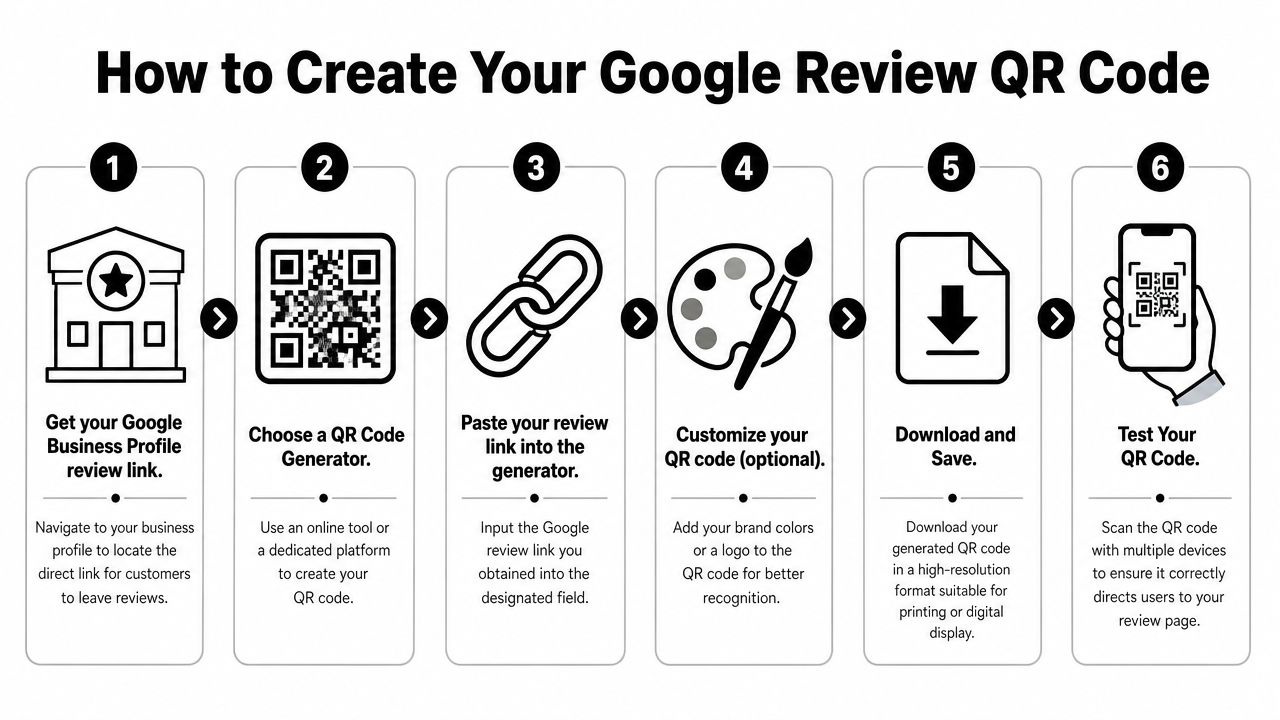
This method is convenient, but it has trade-offs. A native Google QR code points directly toward the review action, which is simple for customers. At the same time, WP Expert's coverage of Google's native review QR workflow notes a real concern: sending people straight to the review submission form can increase the risk of reviews being filtered because it skips more organic engagement signals. In some cases, routing people through a business landing page first may create a more natural path.
Method two with a direct Place ID review link
If you want more control, build the review URL yourself using your Place ID. The link format is:
https://search.google.com/local/writereview?placeid=YOUR_PLACE_ID
This approach matters because some dashboard-generated links may route users to a broader profile experience, while a direct Place ID link can be more precise. ReviewFire's guide on building a Google review QR code with Place ID recommends this format and adds two practical requirements that many business owners skip:
- Test on both platforms: Validate the link on at least one iPhone and one Android before printing in volume.
- Test at actual distance: Scan from the same distance customers will use, typically 3–5 feet, because rendering and print quality can affect real-world scans.
- Match size to placement: Use at least 1.2 inches by 1.2 inches for receipt or footer use, and 3–4 inches for storefront signage.
- Keep contrast strong: Attractive branding is fine, but low-contrast codes often fail under uneven lighting.
A QR code that looks polished but doesn't scan instantly is worse than a plain black-and-white one.
Turning your link into the actual QR code
Once you have your preferred URL, drop it into a QR code generator. Most generators will let you download a PNG or SVG and add a logo or brand colors.
Keep customization modest. The more decorative the code becomes, the more carefully you need to test it.
A simple checklist before you print:
- Confirm destination: Make sure the code opens the intended Google review path.
- Scan on multiple devices: iPhone and Android are both required.
- Check printed versions: Screen-perfect files can still fail after resizing or low-quality printing.
- Save the source link: If you ever need to rebuild the QR code, you won't have to start from scratch.
Static vs Dynamic QR Codes Which Is Right for You
This is the decision that shapes everything after launch.
A static QR code contains the final destination URL directly inside the code itself. A dynamic QR code points to a redirect that you control, so you can change the destination later and track scans. Those aren't minor differences. They affect measurement, flexibility, and how expensive mistakes become.
The practical difference
If you use Google's built-in QR code, you're using a static image. According to QR Code Generator's overview of Google business review QR codes, that means you can't edit the destination later, and you don't get tracking data. If the profile URL changes or the code needs updating, you have to generate a new one and reprint everything.
For a small run of counter cards, that may be acceptable. For multi-location signage, packaging inserts, printed receipts, and reusable displays, it becomes limiting fast.
Static vs. Dynamic QR Code Comparison
| Feature | Static QR Code | Dynamic QR Code |
|---|---|---|
| Editability | Fixed after creation | Destination can usually be updated without reprinting |
| Tracking and analytics | No built-in scan tracking | Can track scans and compare placements |
| Lifespan | Tied to the original URL forever | More adaptable if your workflow changes |
| Cost | Often free | Usually requires a paid tool or platform |
| Best use case | Simple one-location setup | Ongoing review campaigns and multi-channel testing |
When static still makes sense
Static works if your needs are basic:
- You want speed: Generate once, print once, and you're done.
- You only need a few placements: A front desk sign or a single checkout display is manageable.
- You don't care about analytics: You just want a scannable path, not a measurable campaign.
That said, static codes lock you into early decisions.
Why dynamic is usually the better business choice
Dynamic QR codes turn a Google review QR code from a printed object into a marketing asset. You can test messaging, swap destinations, and see which locations drive action.
If you plan to use QR codes in more than one place, dynamic usually saves effort later even if it takes more setup now.
For most serious businesses, dynamic is the better pick because it supports iteration. You can improve a campaign instead of guessing whether it works.
Best Practices for QR Code Placement and Design
A well-made QR code can still underperform if it's in the wrong spot.
Placement drives scans more than clever wording does. Businesses that place Google review QR codes at high-convergence points such as checkout counters can see a 40–60% increase in review volume, while checkout counters themselves generate the strongest scan rate at 15–20%. That's notably higher than 8–12% for table tents and 5–8% for receipt footers, based on placement benchmarks for Google review QR codes.
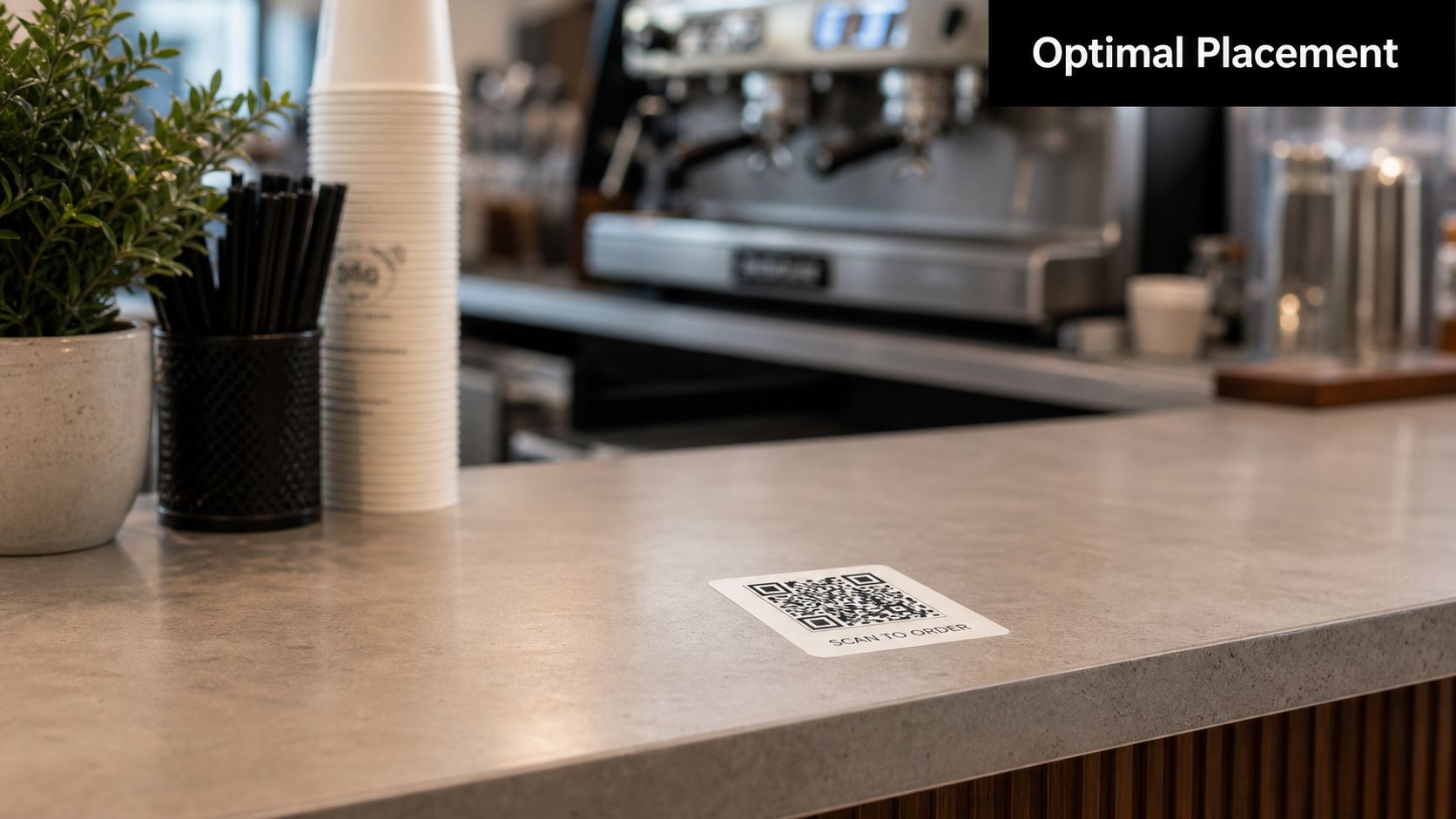
Where to place it first
Start with the point where the customer has completed the transaction and is no longer juggling decisions. That's why checkout performs best. People are stationary, the service is complete, and their phone is often already in hand.
Good placement options include:
- Checkout counter: Best for immediate action and staff prompts.
- Front desk or reception: Useful in clinics, salons, and service businesses.
- Exit area: Works when customers pause on the way out.
- Packaging insert or takeout bag: Helpful when the product experience continues after pickup.
If your website already showcases customer proof, review widgets for your site can reinforce the same trust signal online after the in-person QR interaction.
Design rules that prevent scan failure
Design matters, but scannability matters more.
Use these essentials from the field:
- Size for context: ReviewFire recommends a minimum of 1.2 x 1.2 inches for receipt or footer placement and 3–4 inches for storefront signage, as noted earlier in the creation process.
- Keep contrast high: Dark code on a light background is still the safest option.
- Leave breathing room: Don't crowd the QR code with borders, icons, or tiny text.
- Use a clear prompt: "Scan to leave a Google review" works better than decorative wording.
Small changes that improve response
The message around the code matters almost as much as the code itself. A customer shouldn't need to guess what happens after the scan.
Try short prompts like:
- Loved your visit? Scan to leave a Google review.
- Happy with the service? Tell others on Google.
- Got a minute? Your feedback helps local customers choose with confidence.
Place the code where the customer naturally pauses. Don't make them hunt for it on a crowded sign or at the bottom of a receipt.
Track and Manage Reviews with Advanced QR Strategies
A QR code campaign gets more useful when you can measure what happened after the scan.
Dynamic codes distinguish themselves from one-off static setups. They let you compare placements, test different prompts, and spot dead zones in your customer journey. Without that data, you're guessing which signs, inserts, or digital touchpoints deserve space.
What to track
For businesses trying to build a consistent review engine, broad placement matters. QRLynx reports that businesses targeting 20+ reviews per month need dynamic QR codes across at least five channels, including receipts, table tents, email templates, packaging inserts, and storefront decals, so they can monitor scan analytics and compare scans to actual review counts. That same guidance on advanced Google review QR strategies also points out that static codes make this kind of optimization impossible.
Useful signals include:
- Scan location: Which placement gets attention
- Scan timing: Whether reviews spike during certain shifts or days
- Destination performance: Whether one review path creates less friction than another
- Channel comparison: Which printed and digital asks work best together
Why UTM tracking helps
If your QR code sends people to a landing page before Google, UTM parameters can help you see traffic behavior in analytics tools. That gives you context beyond raw scans. You can tell whether visitors bounced, engaged, or continued into your review flow.
That kind of visibility matters when you're refining a campaign over time instead of printing a code and hoping for the best.
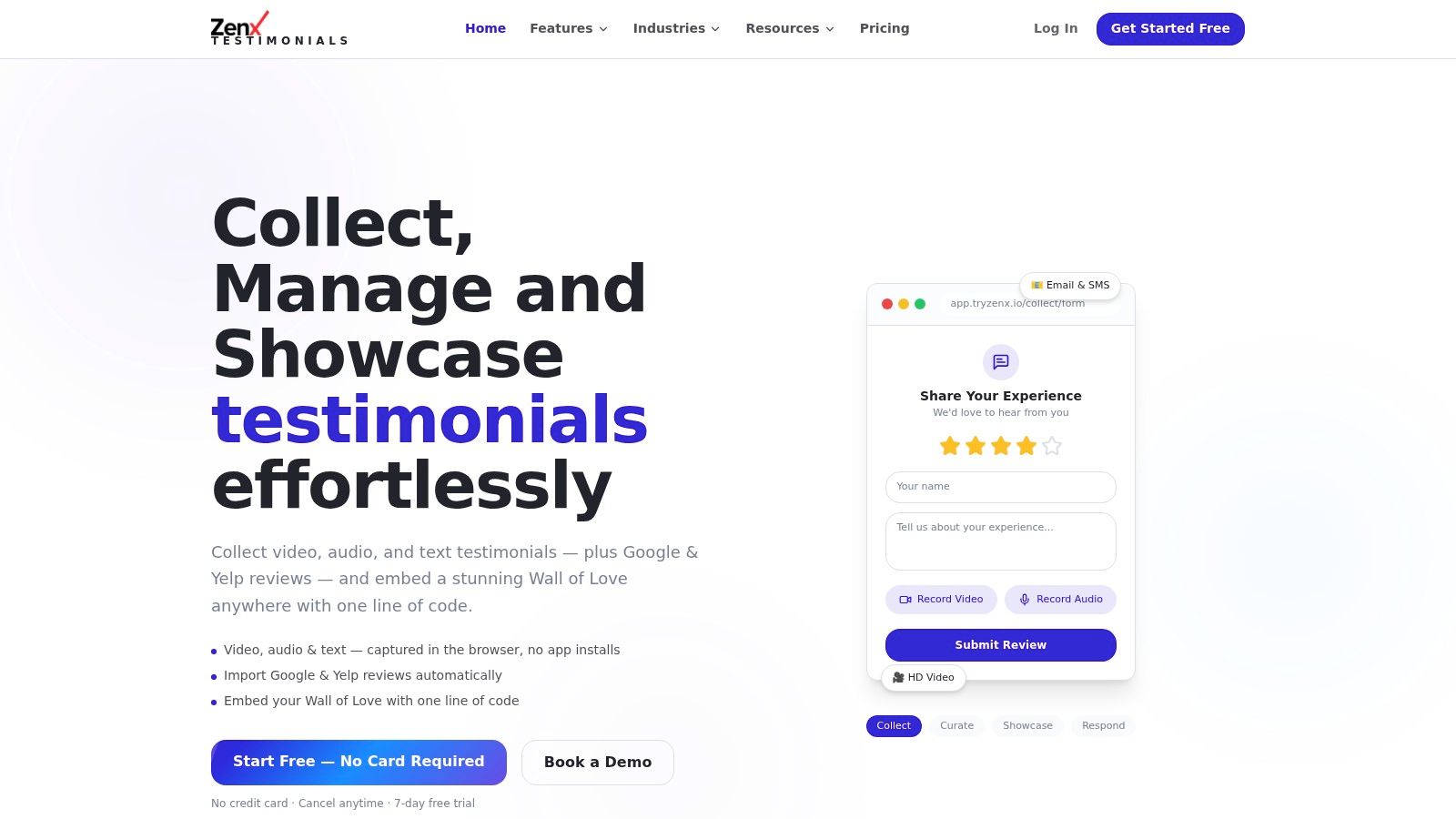
A professional setup often looks like this in practice:
Turning scattered reviews into a workflow
At some point, most growing businesses outgrow DIY review collection. They need one place to centralize incoming feedback, organize public reviews, and reuse that proof on their site and landing pages.
That's where a dedicated platform becomes useful. If you want to see what that kind of workflow looks like, explore Google review management software that combines collection, moderation, importing, and display into one process.
The main shift is mental. Stop thinking of your Google review QR code as a sticker. Start treating it like part of your review operations.
Troubleshooting Common Google QR Code Problems
Most QR code problems are preventable, but only if you test before rollout.
Google explicitly recommends testing review QR codes on both iPhone and Android because mobile operating systems handle scanning and URL opening differently. A code that works on one device can fail on another if the link structure is off, according to Google review QR code testing guidance for iPhone and Android.
If scans fail, the cause is usually one of these:
- Poor print quality: Blurry edges or low contrast make scanning unreliable.
- Overdesigned code: Heavy branding can interfere with readability.
- Broken mobile routing: One operating system may open the wrong browser path.
- Google login friction: Some users can't complete the review flow if they aren't signed into a Google account.
A simple fix for login friction is to add a short prompt near the code such as "You'll need to be signed into Google to leave a review." That sets expectations and avoids confusion.
Take troubleshooting seriously. It's the difference between a review system that works effectively and one that frustrates customers.
If you want to go beyond a basic Google review QR code, ZenX Testimonials gives you a more complete setup for collecting, managing, and displaying customer proof. You can organize review requests, centralize feedback, import third-party reviews, and publish them on your site without juggling separate tools. For businesses that want a repeatable review workflow instead of a one-off QR experiment, it's a practical next step.
Written by
Sunil
ZenX Testimonials
Sunil writes about reviews, testimonials, and the everyday work of earning customer trust.